GitHub
GitHub is the integration every instance has. The GitHub App created during setup signs your team in, lists the repositories that become projects, delivers the events that start workflows, and lets the agent push branches, open pull requests, and answer on issues. This page collects what that covers and how to use it in workflows.
Setup
The GitHub App is created once, on the setup page of a fresh instance. Setup walks through that flow. Once the app is installed on a repository, that repository is ready. There is nothing to configure per repository, no webhook and no token.
What the app is allowed to do on the repositories it is installed on:
It subscribes to three webhook events: pull request, issues, and issue comment. Everything on this page is built from those.
Capabilities
Triggers
A GitHub trigger watches the repositories of the selected projects and starts one run for the project whose repository sent the event. The tabs "Pull request" and "Issue" at the top of the form decide what the trigger is about. Below them, "Fires when any of these happens" lists the events and "But only if" the conditions. Any ticked event fires the trigger, and one group of conditions has to hold. How the two sections work in general is on Triggers.
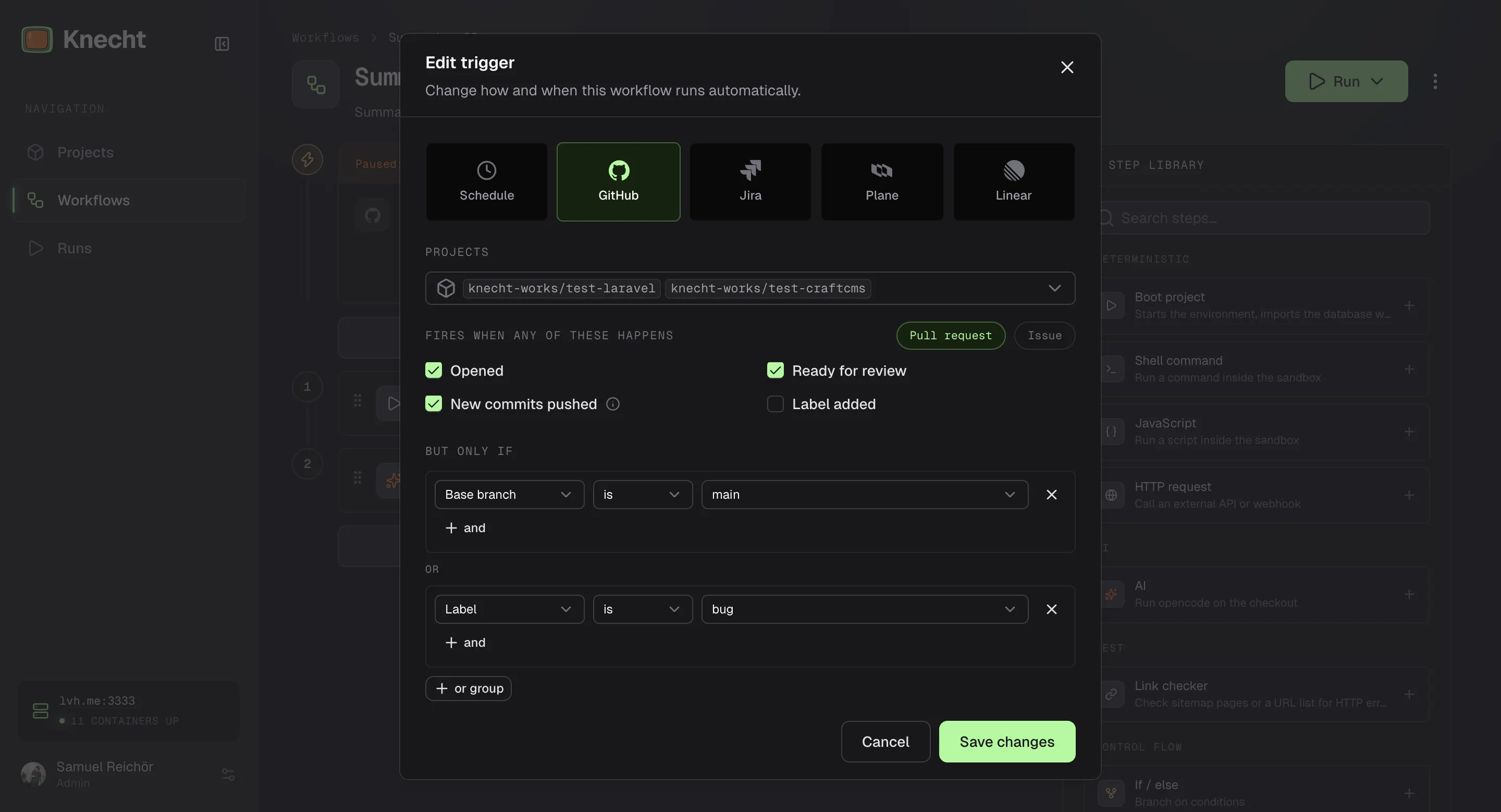
Pull Request Events
Runs check out the pull request's branch.
Pull Request Conditions
Each condition takes "is" or "is not". Branches and logins are typed, with the branches and assignees of the repository as suggestions, and take patterns. Bots are written the way GitHub shows them, for example renovate[bot]. Labels and the PR state are picked from a list. Upper and lower case count, in logins too. The rules are the same for every source, see Matching.
Issue Events and Conditions
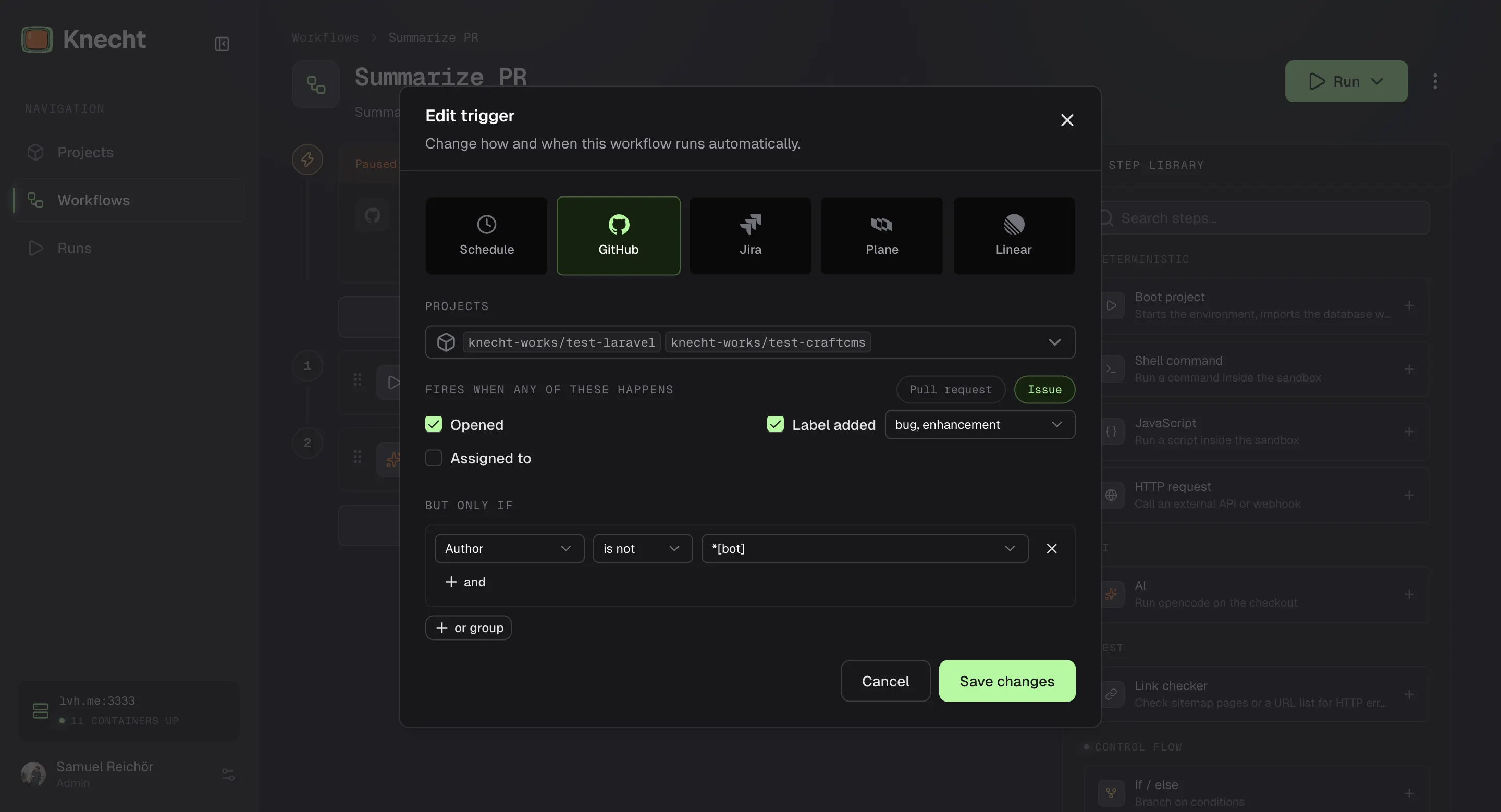
Issues take the conditions "Author", "Assignee", and "Label", with the same rules as on pull requests. Runs check out the project's default branch.
Inputs
Both kinds fill the same run inputs: identifier is the number, plus title, body, url, status, labels, assignee, and author. event is pull_request or issues. Pausing, versioning, and the shared behavior of all triggers are on Triggers.
Sessions on Issues and Pull Requests
A run started by an issue or pull request joins the session of that issue or pull request. The session keeps the checkout, the environment, and one agent conversation, so a later trigger or a mention continues where the last run stopped. Closing the issue closes the session, reopening it revives the session. Scheduled and manual runs have no issue behind them and get a session of their own that closes after the run.
Workflow Steps
Three steps in the Output group of the step library work with GitHub. They run in any workflow, no matter whether a GitHub event, a schedule, or a click started it.
Knecht appends a link to the preview environment to every pull request description. A branch without commits is skipped without failing, and the step then produces no outputs. The run page shows an "Open Pull Request" button once a pull request exists.
The Agent on Issues and Pull Requests
When the run's session belongs to an issue or pull request, the agent gets four commands inside the environment. The prompt of an AI step only has to name what to do with them.
- Read the thread. Title, state, author, assignees, labels, body, and the last ten comments, so a follow-up sees what was said in the meantime.
- Reply. Posts a comment on the issue or pull request. Knecht appends the preview link and, when one exists, the pull request link.
- Set labels. Adds or removes labels of the repository. Knecht never creates labels, so the ones the agent should use have to exist before the run.
- Open a pull request. Pushes the current branch and opens a pull request against the default branch, without the git steps above. The agent refuses to do this on the default branch itself.
Mentions
Comment on an issue or pull request of the project's repository:
@knecht-works fix the broken footer link
The name of your GitHub App works instead of @knecht-works as well. Knecht reacts with an eyes emoji, runs the comment as a follow-up, and posts the answer in the thread.
Knecht only answers GitHub accounts that can sign in to your Knecht dashboard: the owner and everyone invited under Settings, Access, see Inviting Your Team. Write access to the repository is not enough. Comments from all other accounts and from bots are ignored.
The one-time setup, what happens step by step, and what to check when Knecht stays silent is on Mentions.
Examples
The workflows below can be built in the editor or imported from YAML under Workflows, "Import". Triggers are added in the editor after the import.
Software Factory
Three workflows that hand an issue from one to the next. The triage checks every new issue and sets the label bug or enhancement, and that label fires the trigger of the matching workflow. A bug comes back with a pull request, an enhancement with a plan that a mention in the thread turns into a pull request.
All of it runs in the session of the issue. The triage boots the site once and every later run finds it running, so only the triage has a boot step. The prompts do not repeat title or body, because the agent reads the issue of its session itself. Both labels have to exist in the repository, bug and enhancement are GitHub's defaults.
Triage
Bug Fix
Add Enhancement
Result
Someone reports that the site has no dark mode. A minute later the triage has labeled the issue as an enhancement.
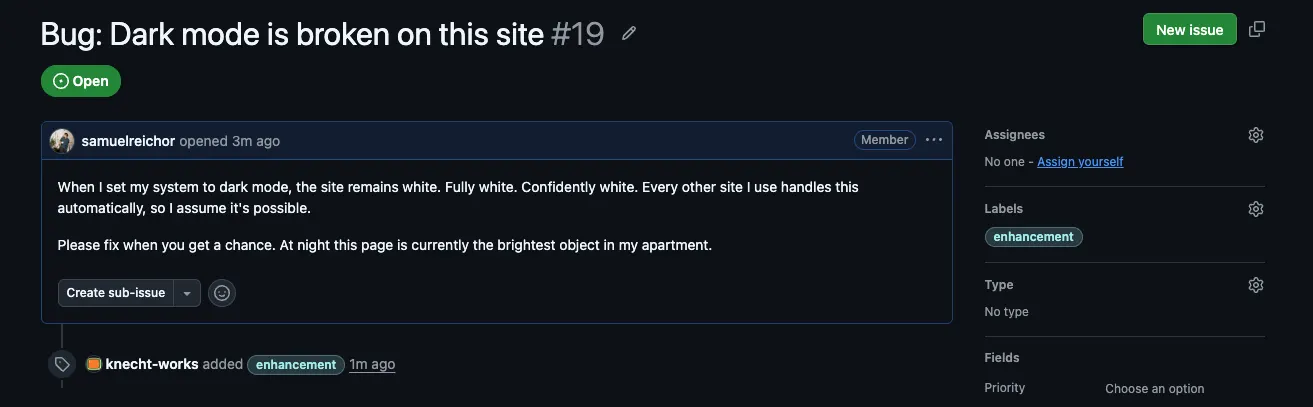
The label starts "GitHub Add Enhancement", and the plan lands in the thread, with the preview link Knecht appends.
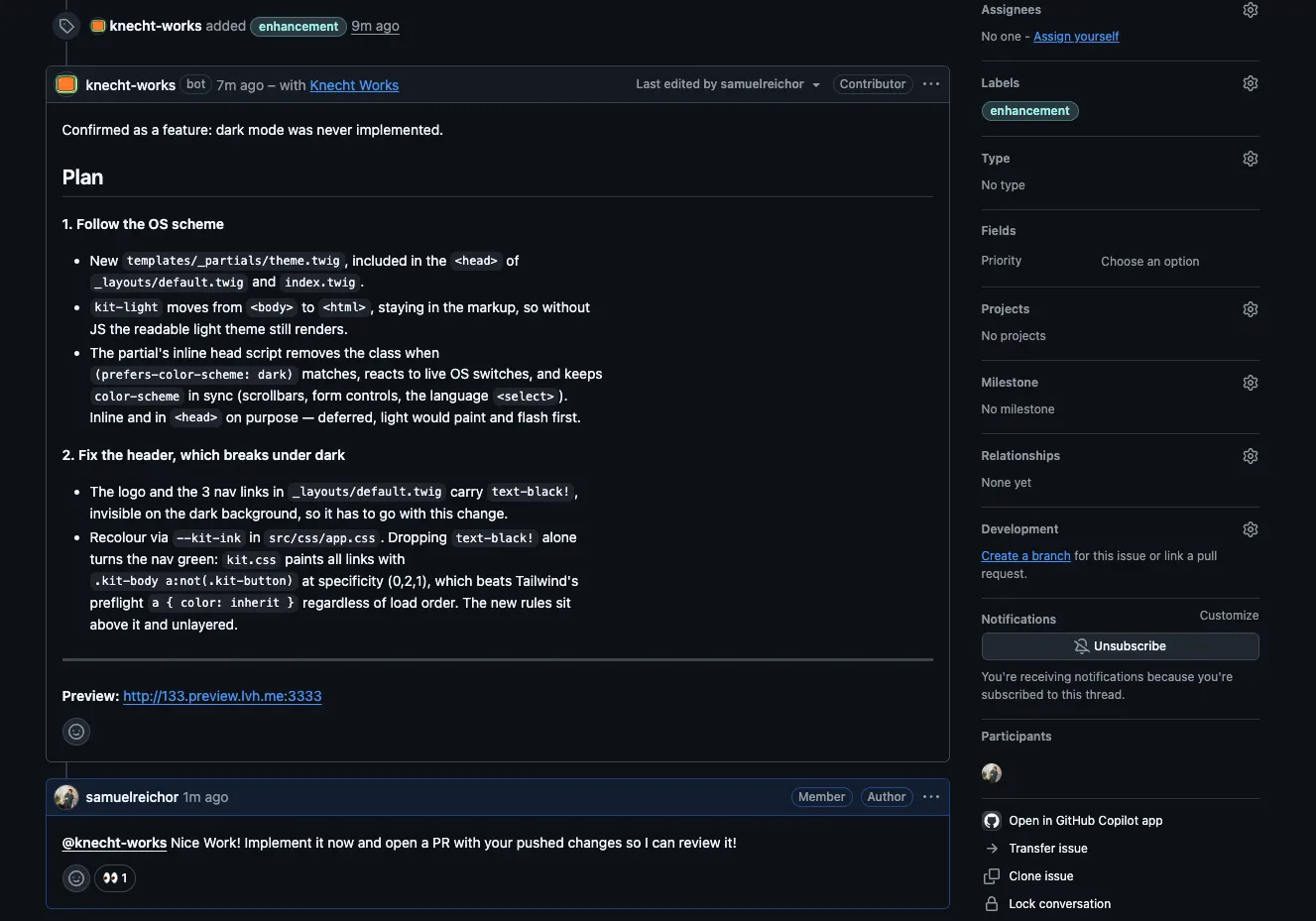
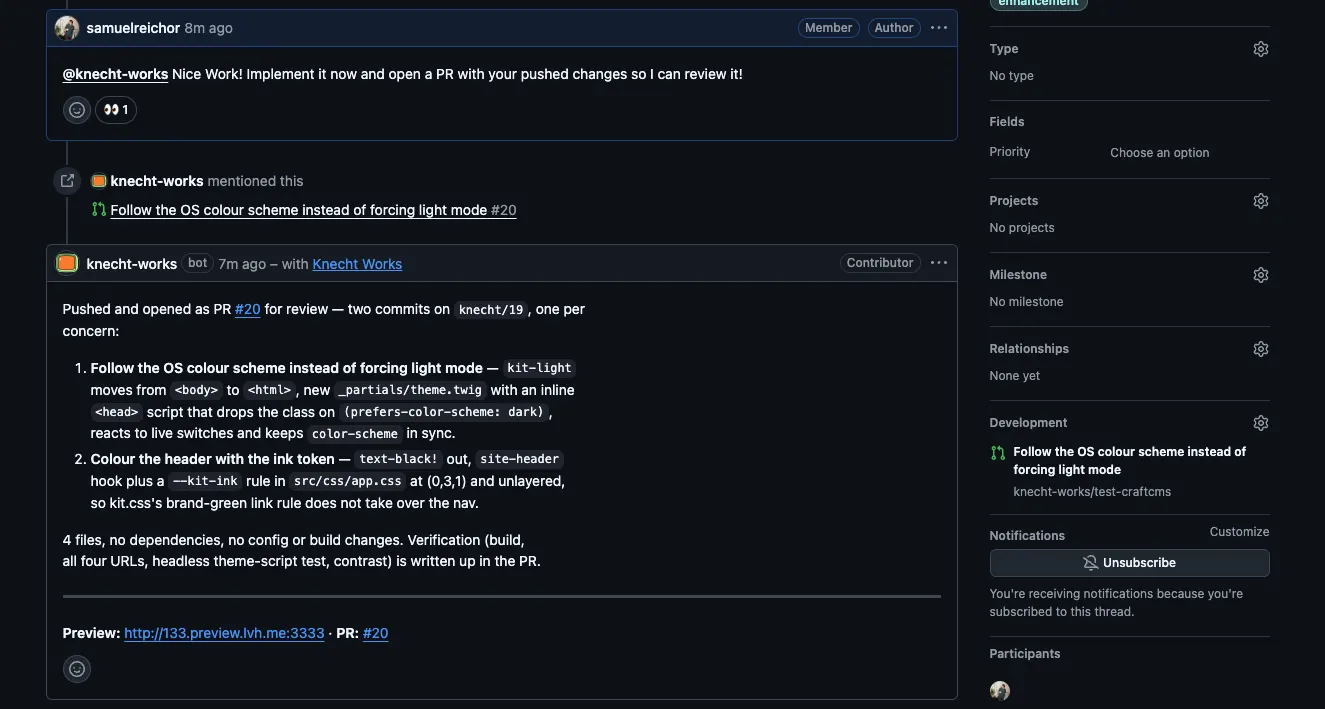
A team member agrees and mentions Knecht. It continues in the same session and answers with the pull request.
Pull Request Review
Knecht tests every pull request on the running site. The run checks out the pull request's branch and the agent posts its findings as a comment. New commits fire the trigger again in the same session, so the second review knows the first. Do not exclude authors with *[bot] if Knecht's own pull requests should be reviewed: they are opened under the app's bot account.